Capture anything
Region, window, monitor or all screens. Magnifier with pixel colour, keyboard nudging, repeat the last region, delay and fixed sizes.
Press PrintScreen, drag, done — it's on your clipboard before you let go.
Pin it, mark it up, read the text in it, or record the steps. Everything stays on your PC.
No hidden shopping ads like AliExpress, no pop-ups, no banners, no tracking.
No adware posing as updates, no click bait — just capture, and your PC stays fast.
 QuickCapture
A native Rust capture core does the work; nothing else runs until you ask for it.
Screen grabbed the moment you press the key
Overlay appears instantly, on every monitor and DPI
Image on the clipboard before you release the mouse
Capture is only the start. QuickCapture helps you share, explain and find it later.
Region, window, monitor or all screens. Magnifier with pixel colour, keyboard nudging, repeat the last region, delay and fixed sizes.
Capture one screen, a single window or every monitor at once. Mixed scaling and negative coordinates are handled in real pixels, so every capture is sharp.
Keep a capture floating above everything — zoom, change opacity, click through it while you work.
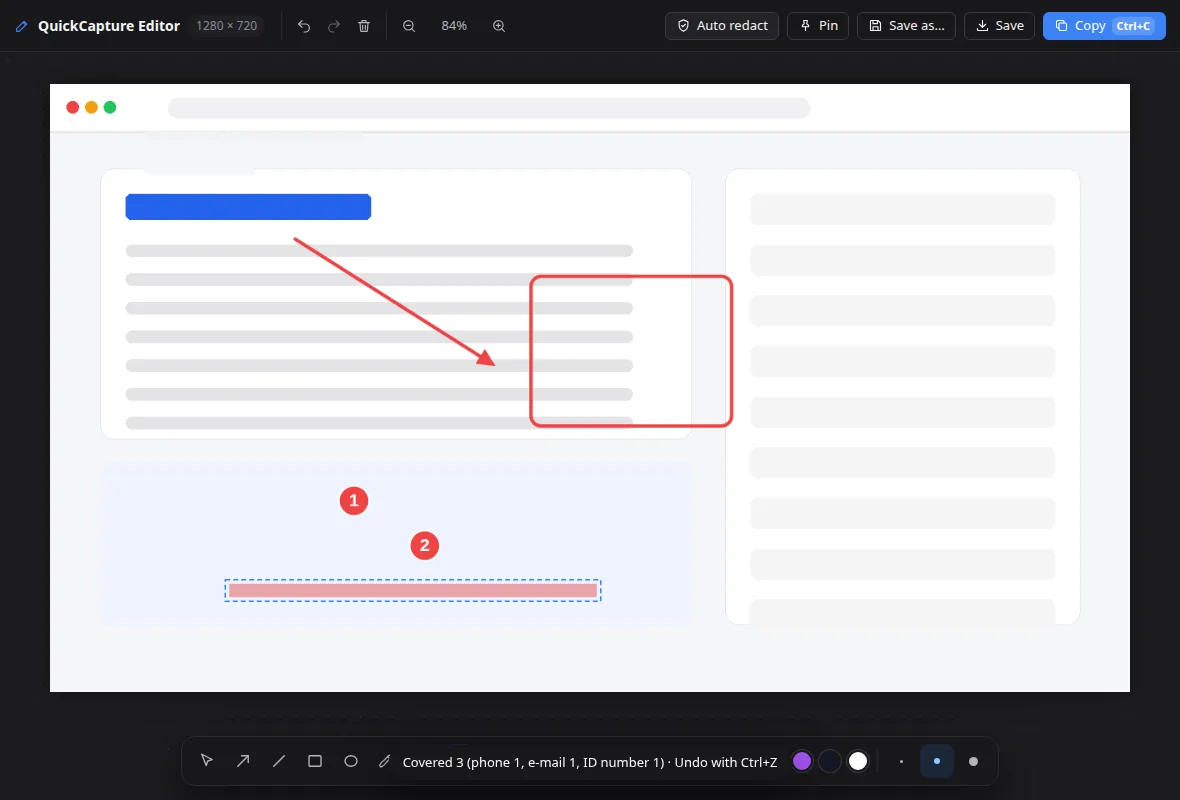
Arrows, boxes, text, numbered steps, stamps, speech bubbles, spotlight, magnifier, torn edges and crop. Every edit stays editable — reopen it any time.
One click finds e-mails, phone, ID, card and account numbers — and faces — and blurs them. Blur really destroys the pixels.
Capture a whole web page, chat or document. QuickCapture scrolls for you and stitches it seamlessly.
Grab the words in any image or video with Windows' built-in OCR. Links, phone numbers and dates become one-click actions.
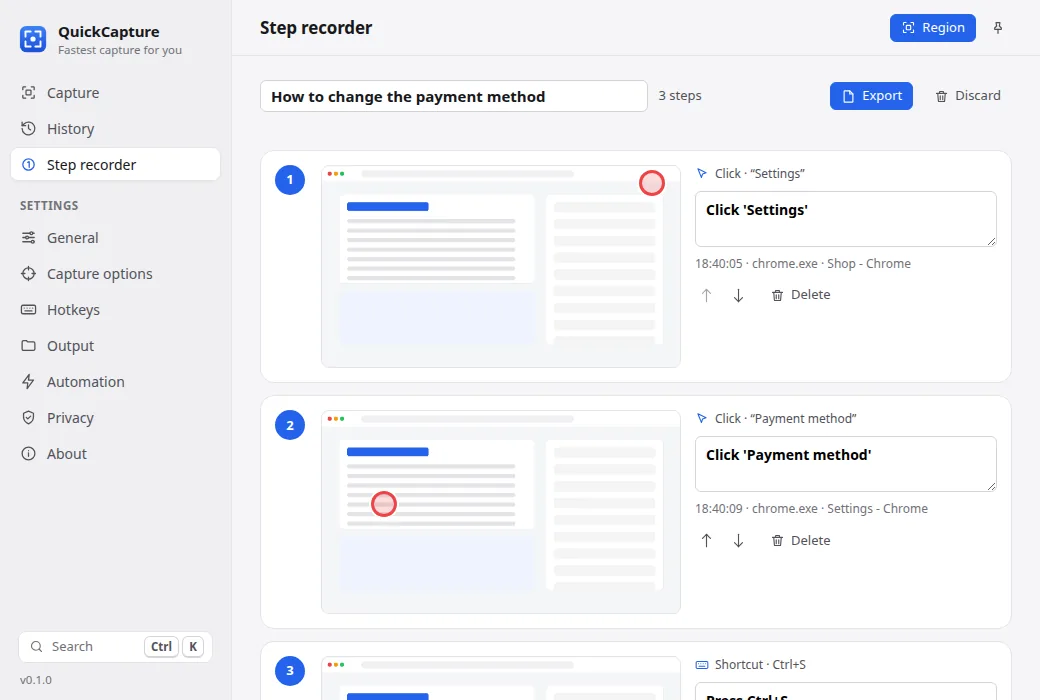
Work as usual; every click becomes a numbered screenshot with “Click ‘Settings’” written for you. Export a how-to in seconds.
Record any area as a small MP4 with system sound, your voice and an optional webcam corner. Pause, resume and trim — all on your PC.
Record a short moving demo and paste it straight into chat or e-mail. Tiny files, crisp UI colours.
Zoom into the screen live, draw and type on it, switch to a whiteboard or blackboard and run a break timer — made for demos and classes.
Take a screenshot every few seconds automatically. Unchanged screens are skipped and everything lands in one collection.
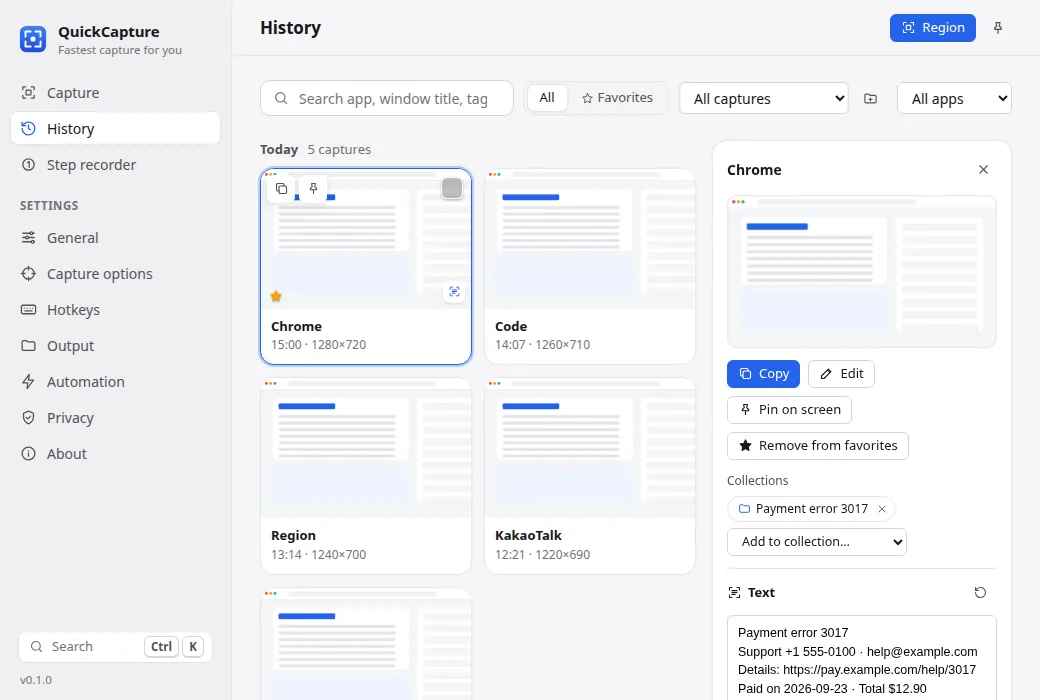
A private library of every capture: search by app, window title, tag — even the text inside the picture.
Group captures into projects in one click and export them as PDF, Markdown or a web page.
See before and after with a slider and pixel diff. Package screenshots, environment and text as a bug report ZIP.
“If the screen says error, redact, tag and save to the Bugs folder.” Workflows run after every capture, locally.
Select words right on the picture and copy them, like text in a document. Works on every capture in your history.
Read QR codes and barcodes (EAN, UPC, Code 128…) in any capture, offline. Links open with one click; everything else is copied.
Add a gradient background, padding, rounded corners and a soft shadow in one click: ready for social posts and slides.
PrintScreen or any combo you like. QuickCapture never steals a shortcut that another app already uses.
The app, installer and help come in 12 languages and follow your Windows language automatically.
Make QuickCapture your default image app: PNG, JPG, GIF, WebP open instantly with no ads — zoom at the pointer, ←/→ through the folder, copy, pin or edit in one key.
Shrink the window to a slim floating capture bar that stays out of the way. Start with Windows, always on top, Explorer “Edit with QuickCapture”.
QuickCapture keeps getting better — always free, never with ads.
The app updates from this page: download again to get the latest version. Your settings and history are kept.
The screen freezes under a light dim so nothing changes while you choose.
Drag a region or click a window. Press P to pin, E to edit, T to copy text.
It's already on your clipboard and in your history — paste into Slack, Teams, Word or e-mail.
Your screen is yours.
QuickCapture works fully offline and never sends anything anywhere.
Nothing to sign up for. Captures, history and recognised text stay on this PC.
Turn off window titles or stored text, exclude banking and password apps from history.
Installers are code-signed by PROJECTTEAMFORYOU with SHA-256 checksums for every build.
Yes. QuickCapture is free to download and use on Windows 10 and 11.
No. There is no account and no server. Captures, history and recognised text never leave your PC unless you share them yourself.
Only if you want it to. QuickCapture never steals a hotkey: if Windows or another app already uses PrintScreen, it tells you and lets you choose.
It uses the OCR built into Windows, so it reads every language you have installed in Windows settings — Korean, English, Japanese, Chinese and many more.
Yes. Every monitor, mixed scaling and negative coordinates are handled in physical pixels, so captures are always sharp.
Use Windows Settings › Apps like any other program. Your saved images stay where you saved them.
Never. No banners, pop-ups, hidden shopping links or tracking. The app only captures.
Free for Windows 10 and 11. Small download. No account.